Transcribe online videos and podcasts by pasting a link: the no-downloads guide
Most transcription tools make you download a video before you can transcribe it. This guide explains which tools actually accept a pasted URL, what platforms are covered, and how to skip the download step entirely.
You found a two-hour interview on YouTube. You want a transcript, to quote from it, to translate it, to turn it into a blog post, or just to search it. A sensible workflow should be: paste the link, get the text. A depressing number of transcription tools still force a detour through your hard drive first: open a third-party downloader, save an MP4, upload it to the tool, wait for the upload to finish, then start the transcription. On a 4G connection that second upload can take longer than the whole transcription.
This guide walks through which tools actually accept a pasted URL, what platforms that URL paste covers in practice, and the workflow from "I have a link" to "I have a transcript", with no file ever touching your disk.
Transcribe responsibly. A publicly reachable link does not always mean you are allowed to download or process it -- some platforms restrict access to their own player. Only transcribe media you own, are authorized to access, or whose platform terms permit, and respect copyright.
Three ways transcription tools handle online media
Every tool on the market lands in one of three buckets. Understanding which bucket a tool is in saves hours of wasted evaluation time.
| Bucket | How you get audio in | Typical examples | Download to your device? |
|---|---|---|---|
| Upload-first | You download the video yourself, then upload the file | Otter.ai, Fireflies (UI), TurboScribe (upload path), Rev (upload path) | Yes |
| Extension / bot | A browser extension or meeting bot captures audio live in your browser or inside the meeting | Tactiq (Chrome extension), Otter (meeting assistant), Fireflies (bot) | No, but only for live meetings |
| Paste-a-link | You paste the public URL into the product and the platform fetches the media server-side | Vocova, Happy Scribe, Notta, Sonix, Descript, TurboScribe (link path), Rev (link path) | No |
The three are not mutually exclusive, several tools offer two paths. But the category a tool leads with tells you a lot about who it was built for.
Upload-first tools and the "download the YouTube file first" trap
Otter.ai is the clearest example. Their own help page explicitly states that Otter does not support pasting a YouTube URL into the product, users are instructed to download the file first and import it, or to play the video while Otter's browser recorder captures the tab (help.otter.ai). That workflow is fine for your own recordings, but it turns a two-click job into a five-step detour for anything hosted elsewhere.
Fireflies.ai has URL upload, but only through their API with bearer-token auth, the consumer product UI is still upload-or-bot (docs.fireflies.ai).
Extension and bot tools only cover live content
Tactiq's core flow is a Chrome extension that captures the transcript while a meeting is happening. It's purpose-built for Google Meet, Zoom, and Teams (tactiq.io/chrome-extension). If the meeting has already ended, your workflow depends on where the recording lives: upload the file directly, or paste an unrestricted share link when your transcription tool supports that source.
Paste-a-link is the cleanest path for everything else
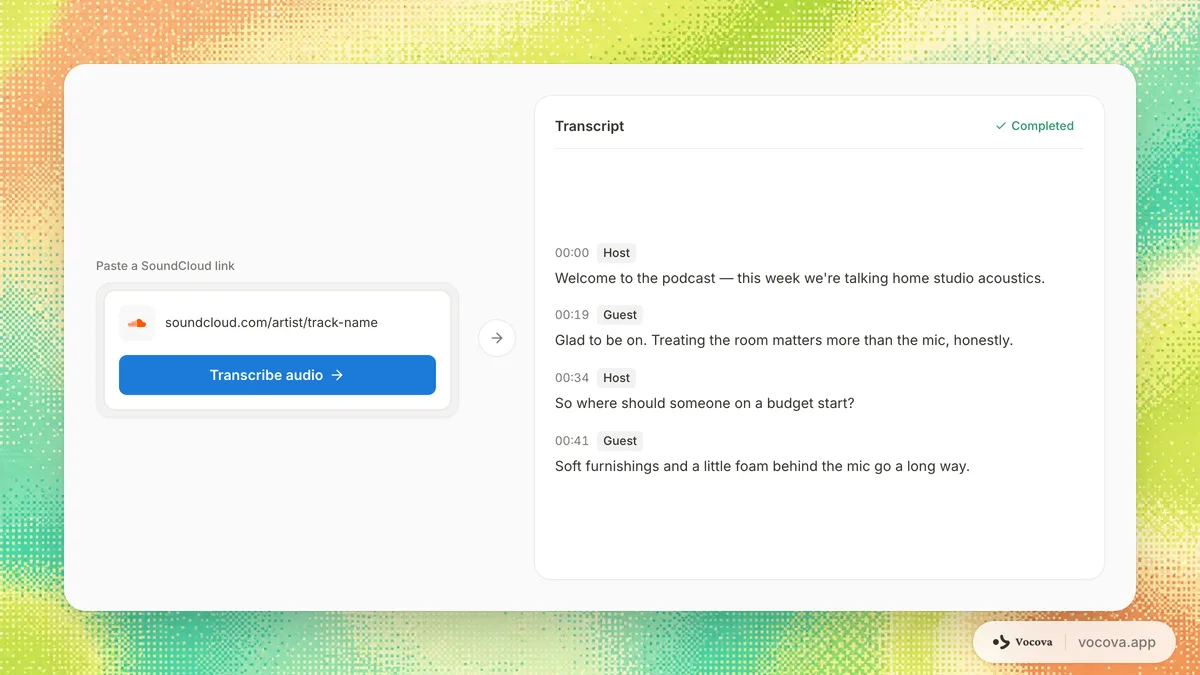
For recorded content that already lives on a supported platform, such as YouTube, a podcast feed, a Dailymotion clip, or a Zoom recording in Google Drive, pasting the URL is the path that matches how the content is actually stored. No local copy, no second upload, no storage footprint on your device.
The landscape, who accepts a pasted link
| Tool | URL paste supported? | Public URLs only? | Notes |
|---|---|---|---|
| Vocova | Yes | Yes | Import from 1,000+ platforms: YouTube, Vimeo, Bilibili, Dailymotion, Apple Podcasts, SoundCloud, Google Drive, Dropbox, OneDrive, and direct media links |
| Otter.ai | No | , | Help page tells users to download the YouTube file first |
| Happy Scribe | Yes | Yes | "all links used through this upload method must be public" (help.happyscribe.com) |
| Notta | Yes | Yes | YouTube, Google Drive, Dropbox paste supported |
| Sonix.ai | Yes | Partial | "Vimeo and YouTube also make frequent changes to limit direct downloads, which can cause errors" (help.sonix.ai) |
| Descript | Yes | Yes | YouTube and Zoom URL paste supported; Google Drive and Dropbox still require file upload |
| Rev.com | Yes | Yes | URL paste accepts multiple URLs at once |
| TurboScribe | Yes | Yes | Both upload and link paths available |
| Tactiq | No (in main product) | , | Chrome extension for live meetings; a separate free microsite at tactiq.io/tools/youtube-transcript pulls existing YouTube captions only |
| Fireflies.ai | API only | Public | Consumer UI is upload-or-bot |
Two takeaways for anyone evaluating tools:
- URL paste is not universal. Even in 2026, category leaders like Otter still require an upload. If your workflow starts with a URL, you're already paying a tax on several of these tools.
- "URL paste supported" isn't a single feature. What varies is which URLs work. Happy Scribe and Notta handle YouTube and cloud drives but require the link to be public. Descript handles YouTube and Zoom but not Google Drive. Sonix works but warns that YouTube and Vimeo are fragile. The scope is what matters.
What "paste a link" covers with Vocova
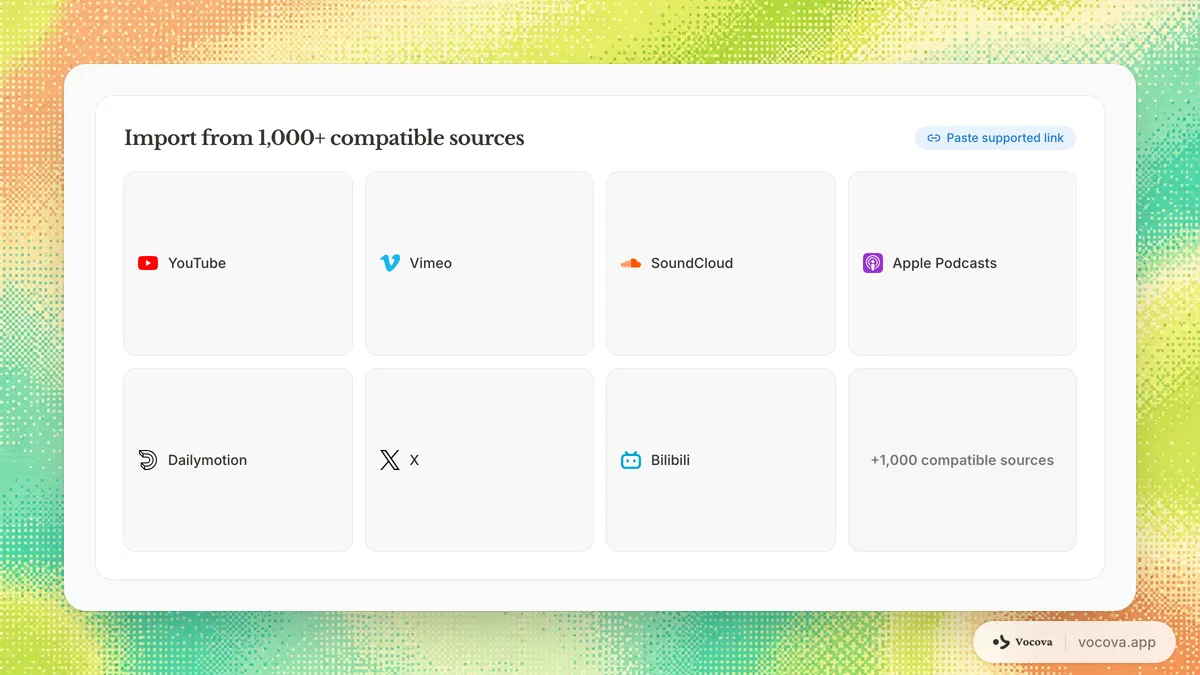
Vocova highlights Import from 1,000+ platforms across its paid plans. In practice the coverage groups into a few categories, and it's worth knowing which group your source falls into.
Video platforms
YouTube, Vimeo, TikTok, Instagram, Facebook, X (Twitter), Reddit, Dailymotion, Bilibili, Rumble, Threads, and direct media links. Dedicated URL workflows cover many of these, including transcribe YouTube, transcribe TikTok, transcribe Reddit, transcribe Instagram, transcribe Vimeo, transcribe Bilibili, transcribe Facebook, transcribe X, and transcribe Dailymotion. Use public, reachable links, and only process content you own, manage, or have permission to transcribe.
Podcasts
Apple Podcasts episode URLs resolve to the underlying audio file, and direct MP3/MP4 URLs from podcast hosting providers work the same way. See transcribe Apple Podcasts and the broader transcribe podcast flow.
Cloud drives and file-sharing
Google Drive, Dropbox, OneDrive, and SharePoint links, as long as the file is set to "anyone with the link", are fetched and transcribed without any desktop download. Zoom recordings that have been shared to Google Drive fall into this bucket; see transcribe Zoom and transcribe Google Meet.
Team recording tools
For Loom-style async recordings, export or save an MP4 that you own or have permission to process, then upload the file. Zoom and Google Meet recordings shared through Google Drive remain part of the cloud-drive URL flow.
Audio hosts
SoundCloud, Mixcloud, Spotify episode links (where a public audio URL is available), and direct MP3 hosting. See transcribe SoundCloud.
The "1,000+ platforms" framing comes from the fact that many supported sources share common media-access patterns. Once a category works, variants inside it usually work too. The pattern to verify on any given source: can a second person open the link in an incognito window without signing in? If yes, it may be in scope.
The honest limits
Three cases where paste-a-link won't work, by design:
Private or sign-in-required URLs
If the link needs authentication to open, a private YouTube video, a Zoom cloud recording protected by a workspace login, a Google Drive file not set to "anyone with the link", Vocova rejects the import rather than guessing. There's no way for a server-side fetch to log in as you. For Google Drive and Dropbox specifically, there's now a better answer than making the file public: connect the account and pick the file directly, which keeps the recording private and skips link sharing entirely. For everything else, the honest answer remains: make the link public or anyone-with-link, or download the file yourself and upload it.
Password-protected recordings
A Zoom recording shared with a passcode can't be fetched by a URL paste for the same reason. Remove the password, or switch to an unrestricted share link.
Live streams
Link import captures finished, published media, not live broadcasts. For live meeting transcription, the right category of tool is a meeting assistant or a browser extension, not URL paste.
File size and length
The pricing page is the source of truth on size: Free supports files up to 30 MB, Plus and Pro support files up to 5 GB. For anything in the long tail, multi-hour lectures, full podcast episodes, feature-length interviews, a paid plan is the path. Free is best thought of as a 30-minute sampler, not a workhorse for long-form URL import.
Link import and upload work side by side
You don't have to choose. The same screen in Vocova accepts a pasted URL or a direct upload, so the two paths complement each other instead of competing. Upload is the right call when the file already lives on your laptop, such as recordings you made yourself, files a colleague sent over, Loom-style exports, or anything that is not published with a supported public link. Link import handles supported sources such as YouTube videos, TikTok and Reddit video links, Vimeo/Bilibili/Dailymotion clips, podcast episodes, files in Google Drive or Dropbox or OneDrive, and direct media links. Exports, AI summaries, speaker identification, and translation are identical regardless of how the audio arrived.
In practice the workflow is "paste if you can, upload if you can't." Most of the time, "if you can" covers far more sources than people expect.
Three worked examples
A creator transcribing a YouTube interview
A podcaster wants to translate a 90-minute English interview into Spanish subtitles for their YouTube channel's Spanish audio track. The starting state is a single YouTube link.
- Open transcribe YouTube and paste the URL.
- The interview is transcribed with every speaker auto-identified.
- Translate the transcript into Spanish, Plus and Pro include 140+ target languages.
- Export SRT with timestamps and speaker labels, upload to the YouTube multi-audio track.
Zero files ever landed on the creator's laptop. The full flow ties into /solutions/creators, which is built around this loop. For a side-by-side comparison of every YouTube transcription approach, built-in captions, browser extensions, Whisper + yt-dlp, manual, see how to transcribe a YouTube video.
A researcher transcribing 12 podcast episodes
A researcher doing thematic analysis needs transcripts for a dozen Apple Podcasts episodes across three languages. Downloading each MP3 manually would take an afternoon.
- For each episode, copy the Apple Podcasts share link (or the direct MP3 if the host exposes one).
- Paste each URL, Plus and Pro support batch upload up to 20 files in one go.
- Every transcript lands with timestamps and auto-identified speakers, exportable as DOCX or CSV for import into Atlas.ti or NVivo.
- For the non-English episodes, generate bilingual side-by-side transcripts so direct quotation and back-translation stay honest, see bilingual subtitles.
The research workflow is the focus of /solutions/multilingual-interviews.
A team transcribing a Zoom recording shared to Google Drive
A product team records a customer call in Zoom, uploads the recording to a shared Google Drive folder, and needs a searchable transcript for the design doc.
- In Drive, set the recording to "anyone with the link can view."
- Paste the Drive link into Vocova.
- Transcript arrives with speakers labelled (auto-identified on Plus and Pro) and a one-paragraph AI summary the PM can drop into the doc immediately.
- Share the transcript link with the wider team, no one re-watches the hour-long video.
What you can do once the transcript exists
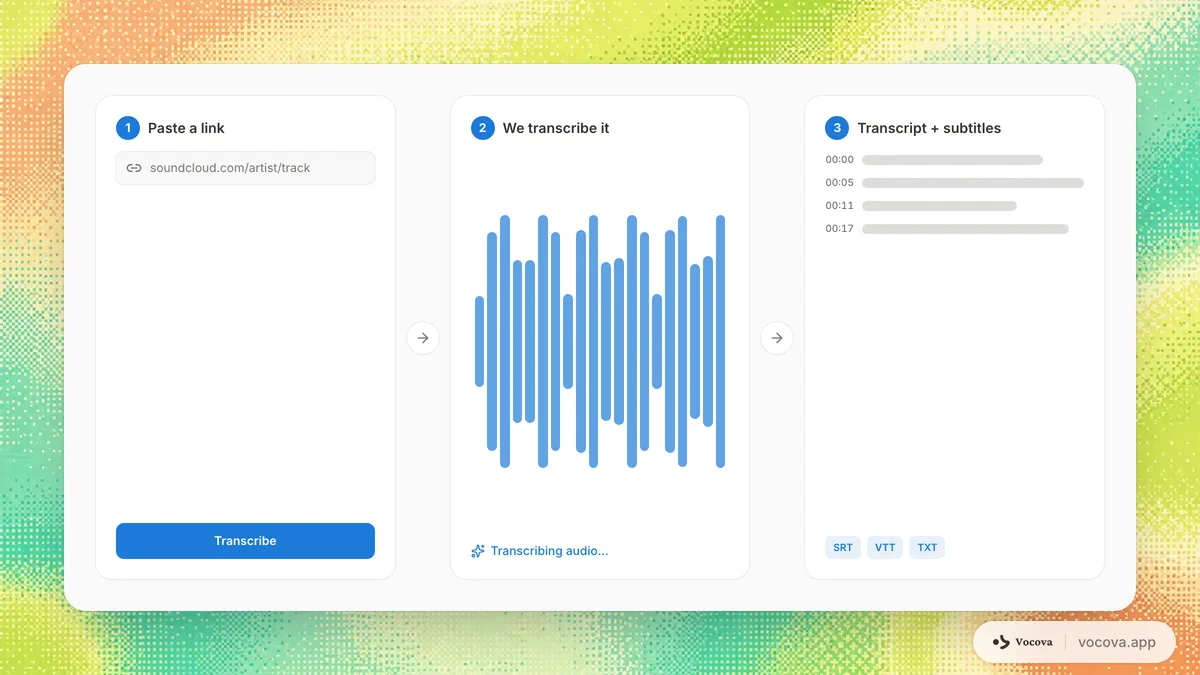
Having a transcript is the start, not the end. A few common follow-ups, each tied to a dedicated tool page:
- Translate audio or translate video into any of 140+ target languages
- Produce bilingual subtitles with source and target side-by-side
- Generate a subtitle file in SRT or VTT
- Pull highlights with YouTube summarizer or podcast summarizer
- For long-form show prep, see the podcaster workflow
Frequently asked questions
Can I transcribe a private YouTube video by pasting the link?
No. The link has to be accessible without a sign-in. For private videos owned by you or your organisation, the right path is to download the file and upload it, or to change the video's visibility to public or unlisted before pasting.
Does link import work on the free plan?
The free plan is a 30-minute entry point for short jobs, see the pricing page for the exact limits. Plus is the paid entry point for longer workflows, unlocking 1,800 minutes per month, larger files, batch processing, every export format, and the full translation stack. Pro keeps the same workflow but removes the transcription cap.
What's the difference between link import and a browser extension?
A browser extension captures audio live inside your browser while content plays. It's useful for live meetings and works regardless of whether a shareable URL exists. Link import works on already-published recordings by fetching them server-side, which means no extension to install, no browser tab to keep open, and no real-time dependency. Most workflows need both categories at different times.
What languages are supported?
Transcription handles 100+ spoken languages with automatic detection. Translation on Plus and Pro covers 140+ target languages. If your source is multilingual or code-switched, Vocova transcribes in the source language rather than forcing everything into English, critical for interview research and journalism.
Can I transcribe a password-protected Zoom recording?
Not through URL paste. Remove the passcode before sharing the link, or use a different share surface (for example, upload the recording to Google Drive with "anyone with the link").
Does URL import use my YouTube account in any way?
No. The fetch is server-side and does not touch your YouTube session, account, or subscription status. This also means private videos on your account aren't visible to the fetcher, they'd need to be public or unlisted.
The short version
The download-then-upload detour is a tax on many online-media transcription workflows. Most of the time you do not need to pay it. For content already hosted on YouTube, TikTok, Reddit, a podcast feed, a supported video platform, a cloud drive, or a direct media URL, a pasted link is the shortest path from "I want a transcript" to having one. For Loom-style recordings or sources that are not reachable by URL, upload an authorized file instead.
If you want to test the link-paste workflow on a real video or podcast, the simplest starting point is the transcribe YouTube tool or, for longer-form work, any of the solutions pages. Everything this post describes runs out of the box on a free account for short clips, and unlocks fully on Plus or Pro for long-form material.