How to transcribe a YouTube video: 5 methods compared
Learn 5 ways to transcribe YouTube videos, from built-in captions to AI transcription tools. We compare accuracy, language support, and export options for each method.
Whether you need a transcript for research, content repurposing, accessibility, or SEO, getting text from a YouTube video is one of the most common transcription tasks. There are several ways to do it, each with different trade-offs in accuracy, language support, and output format.
Here are five methods for transcribing YouTube videos, each with different trade-offs in cost, accuracy, language support, and output quality.
Transcribe responsibly. Transcribe only YouTube content you own, that is Creative Commons-licensed, or that you are otherwise authorized to use. Downloading audio or video you do not own may breach YouTube’s Terms of Service; respect copyright and creators’ rights.
Quick comparison
| Method | Cost | Languages | Speaker labels | Export formats | Editing | Best for |
|---|---|---|---|---|---|---|
| YouTube's built-in transcript | Free | Auto-generated for many languages | No | Copy-paste only | No | Quick reference |
| Vocova (URL import) | Free tier available | 100+ with auto-detection | Plus / Pro | TXT, SRT, VTT, PDF, DOCX, CSV | Yes | Multilingual, professional output |
| Whisper + yt-dlp | Free (self-hosted) | 99 | No | TXT, SRT, VTT, JSON | No (manual) | Technical users wanting full control |
| Browser extensions | Free or paid | Varies (often English-only) | Rarely | TXT, sometimes SRT | Limited | Casual English transcription |
| Manual transcription | Your time | Any | You decide | Any | Full control | Short clips needing perfect accuracy |
Method 1: YouTube's built-in transcript
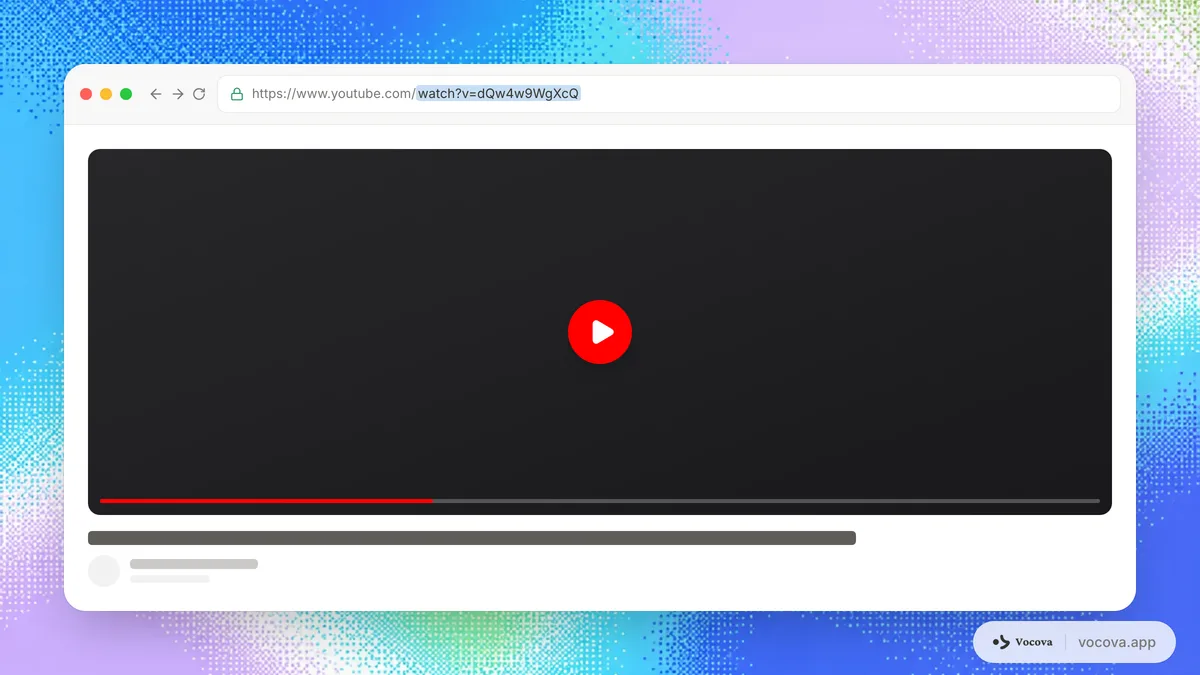
YouTube auto-generates captions for most videos using its own speech recognition system. You can access the transcript directly from the video page.
How to get it
- Open the YouTube video
- Click the three-dot menu below the video (next to Save and Share)
- Select "Show transcript"
- The transcript panel appears to the right of the video with timestamped text
You can select all the text in the transcript panel and copy it to your clipboard. To toggle timestamps off, click the three-dot menu inside the transcript panel.
What you get
The transcript is plain text with timestamps at roughly five-second intervals. There are no speaker labels, no paragraph breaks, and no punctuation refinement beyond what YouTube's auto-captioning provides. The text is not formatted for readability.
Accuracy and language support
YouTube's auto-captions are decent for clear English speech but degrade with accents, background noise, technical terminology, and less common languages. YouTube claims to support auto-captions in over a dozen languages, but accuracy varies significantly. For languages like Japanese and Arabic, accuracy tends to drop significantly compared to dedicated transcription tools.
YouTube's transcript also inherits any mistakes from the auto-generated captions. If the captions are wrong, the transcript is wrong. There is no way to correct the transcript without downloading the caption file and editing it externally.
Limitations
- No export functionality beyond copy-paste
- No speaker identification
- No way to edit within YouTube
- Accuracy depends entirely on YouTube's auto-captioning quality
- Not available for all videos (some creators disable captions, and auto-generation does not cover every language)
- Formatting is minimal, making it hard to use directly in documents or articles
When to use this method
Use YouTube's built-in transcript when you need a quick reference for a specific part of a video and do not need a polished document. It is also useful for checking whether a video covers a topic before committing to a full transcription.
Method 2: Vocova (paste URL and transcribe)
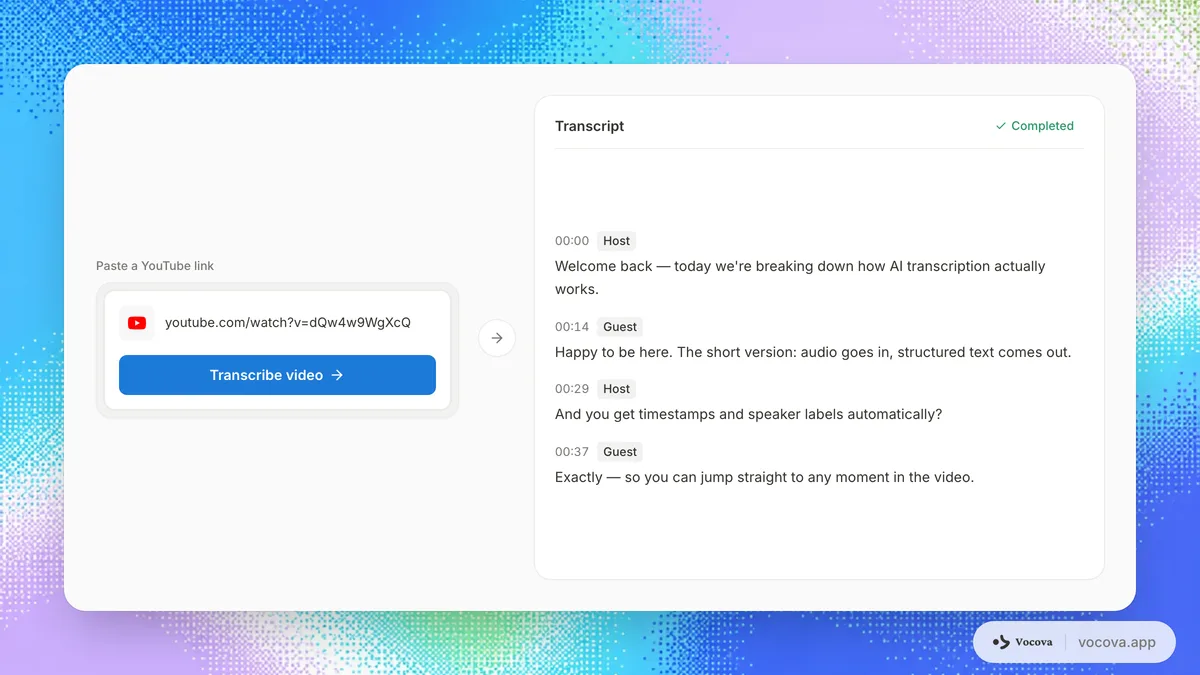
Vocova is a web-based YouTube transcription tool that can import YouTube videos directly by URL. You paste the video link, and Vocova extracts the audio and transcribes it with AI, producing a formatted transcript with timestamps and optional speaker labels. YouTube is one of many platforms that work this way; our guide to transcribing online media by link covers the full list and how pasting a URL compares to uploading a file.
How to do it
- Copy the YouTube video URL
- Go to Vocova and paste the URL
- Vocova detects it as a YouTube video and shows the platform icon
- Click to proceed to the transcription page
- Select the audio language or leave it on auto-detect
- Start the transcription
The process takes a few minutes depending on video length. Once complete, you get an interactive transcript where you can click any segment to jump to that point in the audio.
What you get
A full transcript with:
- Word-level timestamps
- Speaker diarization (Plus / Pro plans) to identify who said what
- Automatic punctuation and formatting
- Interactive playback synced to the transcript
- Translation to 140+ languages
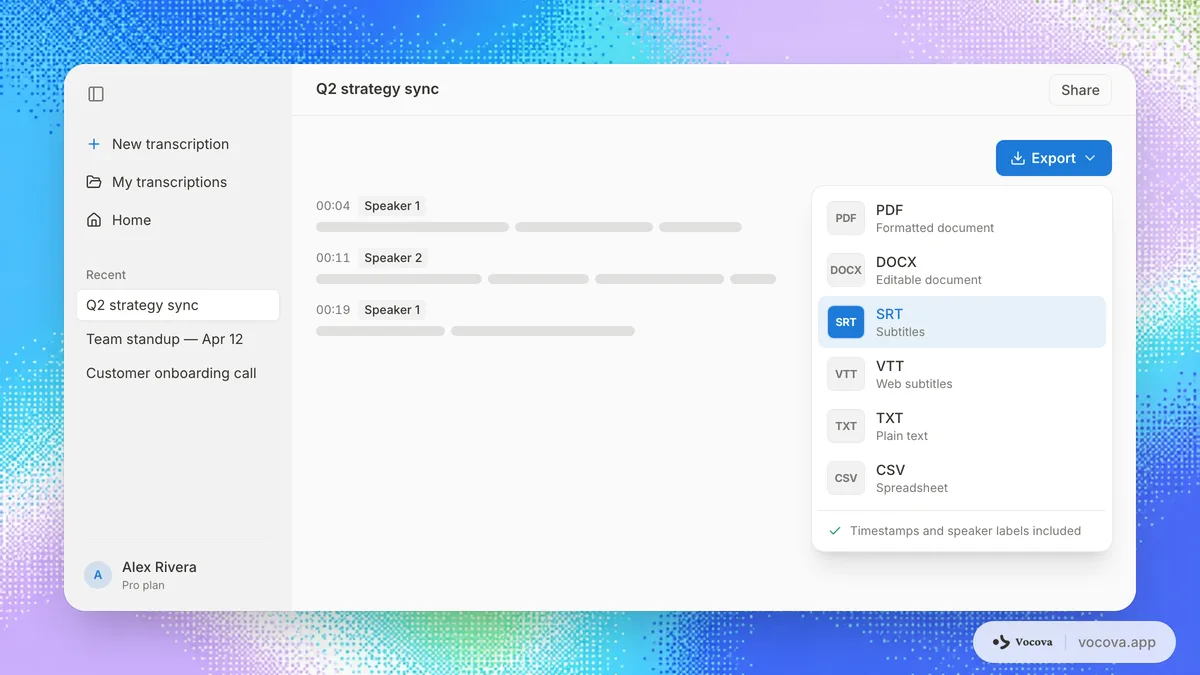
- Export in six formats: TXT, SRT, VTT, PDF, DOCX, CSV
The free tier includes 30 minutes with TXT export. Plus unlocks speaker labels, editing, translation, batch processing, and every export format. Pro includes everything in Plus with unlimited transcription.
Accuracy and language support
Vocova supports over 100 languages with automatic language detection. For multilingual content, videos with non-English speech or mixed languages, a dedicated transcription tool generally handles the audio more accurately than YouTube's built-in captions, which are optimized primarily for English.
The transcript is also editable, so you can correct any errors directly in the interface before exporting.
Limitations
- Free tier limited to 30 minutes
- Speaker labels require Plus or Pro
- Very long videos (10+ hours) hit the per-file duration cap
When to use this method
Use Vocova when you need a professional-quality transcript with export options, especially for non-English content or when you need subtitles (SRT/VTT), documents (PDF/DOCX), or translated versions. It is the fastest path from YouTube URL to finished, formatted transcript.
Method 3: Whisper + yt-dlp (self-hosted)
OpenAI's Whisper is an open-source speech recognition model that you can run on your own computer. Combined with yt-dlp (a command-line tool for downloading YouTube audio), this gives you a fully local, free transcription pipeline. Note that downloading audio from videos you do not own may breach YouTube’s Terms of Service -- use this method for your own uploads, Creative Commons-licensed videos, or content you are otherwise authorized to download.
How to do it
- Install yt-dlp:
pip install yt-dlp - Install Whisper:
pip install openai-whisper - Download the audio:
yt-dlp -x --audio-format mp3 "VIDEO_URL" - Transcribe:
whisper audio.mp3 --model large-v3 --language auto
The output files (TXT, SRT, VTT, JSON) are saved in your working directory.
What you get
A transcript in multiple formats with timestamps. The large-v3 model delivers strong accuracy across 99 languages. You can also use Whisper's built-in translation mode to translate any language to English.
Accuracy and language support
Whisper's large-v3 model is one of the most accurate open-source speech recognition models available. On clean audio, it rivals commercial services. It supports 99 languages and handles accented speech and background noise better than many alternatives.
However, Whisper does not include speaker diarization. Every segment is attributed to "unknown speaker." Adding speaker labels requires combining Whisper with a separate diarization tool like pyannote, which adds significant setup complexity.
Limitations
- Requires a computer with a capable GPU for reasonable speed (CPU-only processing is very slow)
- No graphical interface
- No speaker labels without additional tools
- No interactive editing or playback
- You handle installation, dependencies, and troubleshooting yourself
- yt-dlp may break when YouTube changes its internal API, requiring updates
When to use this method
Use Whisper + yt-dlp when you want complete control over the process, need maximum privacy (nothing leaves your machine), or are processing a large batch of videos and want to avoid per-minute costs. This is a power-user method that requires comfort with the command line.
Method 4: Browser extensions
Several browser extensions add transcription functionality directly to YouTube. Extensions like YouTube Transcript, Glasp, and Transcript Grabber can extract or generate transcripts without leaving your browser.
How they work
Most of these extensions fall into one of two categories:
Caption extractors pull the existing auto-generated or manually uploaded captions from YouTube and format them as downloadable text. They do not perform their own speech recognition. If YouTube does not have captions for a video, these extensions cannot help.
AI transcription extensions use their own speech recognition (or a cloud API) to transcribe the audio independently. These are less common and usually come with usage limits or subscription fees.
What you get
Typically, you get a plain text transcript with timestamps. Some extensions offer SRT export. Most do not provide speaker labels, editing tools, or translation.
Accuracy and language support
Caption extractors inherit YouTube's accuracy exactly, with all its limitations. AI-powered extensions vary widely. Most browser extensions focus on English and offer limited or no support for other languages.
Limitations
- Most extensions only work with videos that already have captions
- Language support is usually English-only or limited
- No speaker identification
- Privacy concerns: some extensions send audio to third-party servers
- Extensions can break when YouTube updates its interface
- Quality and maintenance vary wildly across extensions
When to use this method
Browser extensions are convenient for quickly grabbing an existing English transcript from a video that already has captions. They are not a reliable solution for multilingual content, uncaptioned videos, or professional-quality output.
Method 5: Manual transcription
You can always transcribe a YouTube video yourself by watching it and typing what you hear. This is the most labor-intensive method but gives you complete control over accuracy, formatting, and content.
How to do it
- Open the video and a text editor side by side
- Play the video at reduced speed (0.75x or 0.5x)
- Type what you hear, pausing and rewinding as needed
- Format the transcript with speaker labels, timestamps, and paragraph breaks
What you get
A perfectly accurate transcript formatted exactly the way you want it. You control every detail, from punctuation to speaker attribution to non-speech annotations.
Time estimate
Manual transcription typically takes 4 to 6 times the audio duration. A 10-minute video takes 40 to 60 minutes to transcribe. A one-hour video takes 4 to 6 hours. For occasional short clips, this is manageable. For anything longer, the time investment is significant.
Limitations
- Extremely time-consuming
- Requires good listening skills and typing speed
- Fatigue leads to errors on longer recordings
- No timestamps unless you add them manually
- Not practical for regular or high-volume transcription needs
When to use this method
Manual transcription makes sense for short clips (under 5 minutes) where you need perfect accuracy, or for content in languages that AI models handle poorly. It is also useful when you need to capture nuances that automated tools miss, such as tone, sarcasm, or ambiguous speech.
How to choose the right method
The best approach depends on your specific situation:
- Quick lookup: Use YouTube's built-in transcript. It takes seconds and requires no tools.
- Privacy and control: Whisper + yt-dlp keeps everything on your machine. Nothing is uploaded to any server.
- Non-English content: Vocova (100+ languages) or Whisper (99 languages) both handle multilingual content far better than YouTube's built-in captions or English-focused browser extensions. For a broader look at multilingual transcription, see our article on how AI is transforming multilingual communication.
- Professional output with subtitles: A dedicated transcription tool like Vocova lets you paste the URL and get an editable transcript with export to SRT, VTT, PDF, DOCX, and more.
- Already captioned videos in English: A browser extension can quickly grab the existing transcript if you just need the text.
- Short clips needing perfection: Manual transcription gives you total accuracy for brief segments.
For most users who need transcripts regularly, a dedicated transcription tool offers the best balance of speed, accuracy, and output flexibility compared to manual methods or browser extensions.
Frequently asked questions
Can I download a transcript from any YouTube video?
You can access YouTube's built-in transcript for most videos that have auto-generated or manually uploaded captions. However, some creators disable captions, and YouTube does not generate them for every language. For videos without captions, you need an external tool like Vocova or Whisper to transcribe the audio directly.
Is YouTube's auto-generated transcript accurate?
For clear English speech with a single speaker, YouTube's auto-captions are reasonably accurate, typically around 85-90%. Accuracy drops with multiple speakers, accents, technical jargon, background noise, and non-English languages. For professional use, you will likely need to proofread and correct the output. Our AI vs human transcription comparison covers accuracy benchmarks in more detail.
How do I get subtitles from a YouTube video?
To get subtitle files (SRT or VTT) rather than plain text, you need a tool that exports in those formats. YouTube does not let you download its auto-generated captions as files directly from the interface. Vocova can import a YouTube video by URL and export the transcript as SRT or VTT, ready to use in video editors or upload to other platforms. For details on subtitle formats, see our SRT vs VTT guide.
Can I transcribe a YouTube video in a language other than English?
Yes. Vocova supports over 100 languages with automatic detection, so you can transcribe YouTube videos in Spanish, Japanese, Arabic, Hindi, and many more without specifying the language manually. Whisper also supports 99 languages. YouTube's built-in transcription has more limited and less accurate support for non-English languages.
Is it legal to transcribe YouTube videos?
Fair use is a doctrine of US copyright law (17 U.S.C. § 107), decided case-by-case on four factors, it is not a universal rule. Most other countries instead provide narrower "fair dealing" or specific statutory exceptions that may not cover the same uses, so what is permitted depends on your jurisdiction. Transcribing for personal use, research, accessibility, or education is more likely to be permitted than redistributing or monetizing a transcript of content you do not own; for the latter, review the creator’s terms and applicable copyright law. This is general information, not legal advice.
How long does it take to transcribe a YouTube video with AI?
AI transcription typically processes audio at 5 to 20 times real-time speed, depending on the tool and model. A 10-minute video usually takes under 2 minutes. A one-hour video takes 3 to 10 minutes. This is dramatically faster than manual transcription, which takes 4 to 6 hours for the same one-hour video.
Can I transcribe a YouTube live stream?
YouTube auto-generates live captions during streams, but they are not always saved. After the stream ends and YouTube processes the recording, auto-generated captions may become available. You can then use any of the methods above to transcribe the archived video. For real-time transcription of a live stream as it happens, you would need a tool that supports live audio input, which is a different workflow from file-based transcription.